Classic vs Slim Minecraft Skins (Steve vs Alex arms)

What is the difference between Classic and Slim Minecraft skins?
The only difference is arm width. Classic (Steve-style) uses 4-pixel-wide arms and is set with geometry.humanoid.custom. Slim (Alex-style) uses 3-pixel-wide arms (25% narrower) and is set with geometry.humanoid.customSlim. Everything else (head, body, legs) is identical. Picking the wrong type makes your arms look cut off or shows a visible gap in-game.
Every Minecraft Bedrock skin uses one of two body types: Classic (the wider Steve arms) or Slim (the narrower Alex arms). Picking the right one matters, because the wrong choice makes your arms look cut off or shows a visible gap.
This guide explains the difference, shows you how to tell which type a skin is, and walks through choosing the correct model both when importing a single PNG and when building a skin pack with skins.json.
Classic vs Slim at a glance
The only visual difference between the two types is arm width. Everything else (head, body, legs) is identical.
| Classic (Steve) | Slim (Alex) | |
|---|---|---|
| Arm width | 4 pixels | 3 pixels (25% narrower) |
| Geometry ID | geometry.humanoid.custom | geometry.humanoid.customSlim |
| Default character | Steve | Alex |
Both types use the same 64×64 (or 128×128) texture canvas. The difference is purely in how the game interprets the arm region: Classic reads a 4-pixel-wide column for each arm, while Slim reads only 3 pixels and leaves the 4th column empty.
How to tell which type a skin is
Open the skin PNG in any image editor and look at the arm regions on the template:
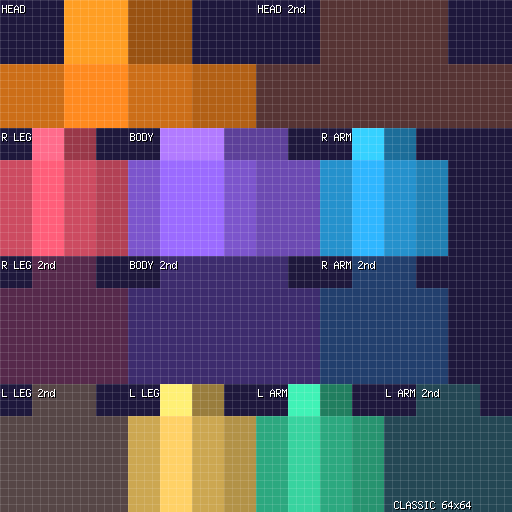
- Classic (4px arms): the right-arm column (pixels 40-43) and the left-arm column (pixels 32-35) are both fully painted. Every pixel in those 4-pixel-wide strips has colour.
- Slim (3px arms): the 4th pixel column in each arm region is transparent (or empty). Only 3 of the 4 pixels carry the arm texture.
In practice, if you see a thin transparent stripe running down one side of each arm, the skin is Slim. If the arms are solid all the way across, it is Classic.
When in doubt, grab a free template from my free skin pack templates and overlay it on your skin. The arm columns line up perfectly for the matching type.
Choosing the model in Minecraft
Importing a single PNG skin
When you import a single skin file through the Dressing Room (Classic Skins → Choose New Skin), Minecraft asks you to choose the correct model type for your skin. Pick Classic for 4-pixel arms or Slim for 3-pixel arms. The skin then appears under Owned Skins and you click Equip to use it.
Inside a skin pack (skins.json)
In a skin pack the model type is set per-skin in skins.json using the geometry field:
{
  "localization_name": "MySkin",
  "geometry": "geometry.humanoid.custom",
  "texture": "my_skin.png",
  "type": "free"
}geometry.humanoid.custom→ Classic (Steve, 4px arms)geometry.humanoid.customSlim→ Slim (Alex, 3px arms)
The value is case-sensitive. A typo here will cause the skin to render incorrectly or not appear at all.
Building a pack? My free Skin Pack Creator lets you set the geometry type for each skin and downloads a ready-to-import .mcpack: no manual JSON editing needed.
What happens if you pick the wrong one
Choosing the wrong model type does not break the skin, but it looks wrong in-game:
- Classic skin set as Slim: the outermost pixel column of each arm is ignored, so the arms look slightly narrower than intended and may show a thin gap or stripe along the edge.
- Slim skin set as Classic: the game reads the 4th (empty/transparent) column as part of the arm, producing a visible transparent stripe or a cut-off appearance on the arms.
The fix is simple: re-import the skin and choose the other model type, or edit the geometry value in skins.json and re-import the pack.
If your arms look odd in a multiplayer world, the fastest fix is to open the Dressing Room, switch to the other model type, and Equip again. You do not need to re-download anything.
Templates for both types
Use these reference templates to check your skin before you import it. Overlay them on your PNG (set the template to 50% opacity) and compare the arm columns.
Classic (4px arms) template:
Slim (3px arms) template:
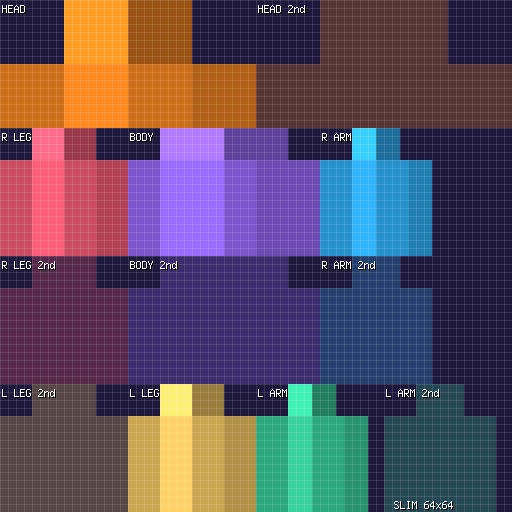
Both templates use the standard 64×64 layout. For 128×128 HD skins the same proportions apply at double resolution.
Need a blank canvas to start? Grab the free templates and a ready-made pack from my free skin pack page, or build your own in the browser with the Skin Pack Creator.
FAQ
Can a skin pack contain both Classic and Slim skins?
Yes. Each entry in skins.json has its own geometry field, so one pack can mix geometry.humanoid.custom and geometry.humanoid.customSlim entries. The game applies the correct model to each skin individually.
Do Marketplace skin packs let me choose Classic or Slim?
Marketplace packs ship with a fixed geometry per skin. You cannot change the model type after purchase. The creator decides whether each skin is Classic or Slim.
Is there a performance difference between 4px and 3px arms?
No. The difference is purely visual (one pixel column of texture). Both types use the same geometry mesh and the same draw calls.
Which type should I pick for a new skin?
It is a style choice. Classic (Steve) arms are the traditional look and give you one extra pixel of space for sleeve detail. Slim (Alex) arms look a bit more modern and are what most newer default characters use. If your art has thin arms, Slim will look more natural; if you want chunkier sleeves, go Classic.
Related guides
Sources
 Get notified about new packs
Join the Discord for update announcements, help and sneak peeks.
Join Discord