Minecraft Bedrock Add-ons: Getting Started (Behaviour & Resource Packs)
· Checked against Minecraft Bedrock 1.26.50
Want to add your own creatures, blocks or items to Minecraft Bedrock? An add-on is how you do it. This guide walks you through the two halves of every add-on, the behaviour pack and the resource pack, and shows you where the files go, and helps you get your first pack working in a world.
You do not need to be a programmer. You need a text editor, a little patience, and the right folder structure. That is it.
What you need
Before you start, gather these free tools:
- A text editor. Visual Studio Code is the most popular choice. It is free, works on Windows, and has a Minecraft Bedrock extension that highlights JSON for you.
- Blockbench (blockbench.net): a free 3D modelling tool for making entity models and block textures. It runs in your browser or as a desktop app.
- A UUID generator. Every pack needs a unique ID. Use uuidgenerator.net or the "UUID Generator" extension inside VS Code.
- An image editor (optional): Krita, GIMP, or Paint.NET work well for drawing 16×16 block and item textures.
You do not need to install any special Minecraft add-on SDK. Everything is plain JSON files and PNG images in a folder.
Behaviour packs vs resource packs
Every add-on is made of two packs that work together:
| Pack | Module type | What it holds |
|---|---|---|
| Behaviour pack (BP) | data | Server-side logic: entity behaviour, block definitions, item definitions, loot tables, recipes, spawn rules, functions. |
| Resource pack (RP) | resources | Client-side assets: textures, 3D models (geometry), animations, render controllers, sound files, and the display names you see in game. |
Think of it this way: the behaviour pack tells the game what the thing does, and the resource pack tells it what it looks like.
- A custom entity needs both packs: the BP defines its stats and AI, the RP supplies its model, texture and name.
- A custom block is defined in the BP; the RP provides the texture and the display name.
- A custom item is defined in the BP; the RP provides the icon and the display name.
The minecraft namespace is reserved for vanilla content. Always use your own short namespace (lowercase letters, digits, underscores), for example myaddon:ruby_block.
Set up the development folders
Minecraft looks for work-in-progress packs in special development folders. Edits to files in these folders are picked up every time you re-enter a world. No need to restart the game.
On Windows, the base path is:
%appdata%\Minecraft Bedrock\users\shared\games\com.mojang(Type %appdata% into the Run dialog (Win + R) to jump there. You may need to turn on "Hidden items" in File Explorer to see the AppData folder.)
Inside com.mojang, create (or use) these two folders:
com.mojang/
  development_behavior_packs/
    my_addon_BP/
  development_resource_packs/
    my_addon_RP/
Each pack folder gets its own manifest.json, a pack_icon.png (optional but recommended), and the content files described below.
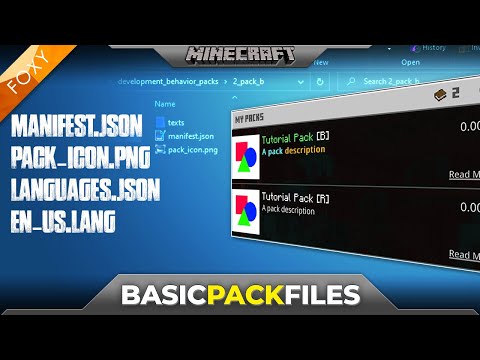
That video is a little older, but the folder structure and file roles it shows are still the same.
Do not put your work-in-progress packs in the normal behavior_packs or resource_packs folders. Minecraft can cache those, and your edits may not show up until you re-import the pack. The development_* folders avoid this problem.
The resource pack manifest
Every pack needs a manifest.json file at its root. This is the "ID card" that tells Minecraft what the pack is, what version it targets, and what modules it contains.
Here is a minimal, valid resource-pack manifest (format version 2):
{
  "format_version": 2,
  "header": {
    "name": "My Add-On RP",
    "description": "Resource pack for my add-on",
    "uuid": "33333333-3333-4333-8333-333333333333",
    "version": [1, 0, 0],
    "min_engine_version": [1, 26, 50]
  },
  "modules": [
    {
      "description": "Resource pack assets",
      "type": "resources",
      "uuid": "44444444-4444-4444-8444-444444444444",
      "version": [1, 0, 0]
    }
  ]
}
Key points:
format_versionis the number2(not a string). This is the safe, stable choice.- The
header.uuidand themodules[0].uuidmust be two different UUIDs. Generate fresh ones. Never copy them from another pack. min_engine_versionis an array[1, 26, 50]. Use the latest stable version you are targeting.typeis"resources"for a resource pack.
Format version 3 exists (it uses string versions like "1.0.0" and requires a metadata block), but Microsoft still labels it "currently in preview." Stick with format 2 until it is fully stable.
The behaviour pack manifest (and the dependency)
The behaviour-pack manifest looks almost the same, except the module type is "data" and there is one extra section: dependencies. This is how the BP "finds" its RP so both activate together.
{
  "format_version": 2,
  "header": {
    "name": "My Add-On BP",
    "description": "Behavior pack for my add-on",
    "uuid": "11111111-1111-4111-8111-111111111111",
    "version": [1, 0, 0],
    "min_engine_version": [1, 26, 50]
  },
  "modules": [
    {
      "description": "Behavior pack data",
      "type": "data",
      "uuid": "22222222-2222-4222-8222-222222222222",
      "version": [1, 0, 0]
    }
  ],
  "dependencies": [
    {
      "uuid": "33333333-3333-4333-8333-333333333333",
      "version": [1, 0, 0]
    }
  ]
}
Notice the dependencies array. The uuid inside it must match the header UUID of the resource pack (the 3333… one above), not the RP's module UUID. The version should match the RP's header version.
Why bother? When you activate the behaviour pack in a world, Minecraft automatically activates the resource pack too. You only toggle one switch.
If you forget the dependency, you will have to manually activate both packs in every world. Worse, if only the BP is active, your entity or block will appear but with no texture or name, just a black, unnamed blob.
Turn your packs on in a world
Once your files are in the development folders, here is how to activate them:
- Launch Minecraft and create a new world (or open an existing one and click Edit).
- In the world settings, find Behaviour Packs. Your pack should appear under "Available."
- Move it to the "Selected" side (or click the arrow).
- Do the same for Resource Packs, though if your BP depends on the RP, activating the BP should pull the RP in automatically.
- Make sure Cheats are turned on (you will need them for
/giveand/summonwhile testing). - Save and enter the world.
Tip from the Microsoft tutorials: for testing, create a flat world with cheats on, always-day, and mob spawning off. It keeps things simple so you can focus on your add-on.
Testing and the content log
The single best debugging tool in Minecraft Bedrock is the content log. It lists every error Minecraft hits while loading your packs: bad JSON, missing textures, wrong identifiers, all in one place.
To turn it on:
- In game, go to Settings → Creator.
- Enable both content-log toggles (the in-game display and the file output).
While you play, press Ctrl + H to open the content-log history. Any red entries are errors in your add-on files.
Other testing tips:
- Re-enter the world after editing a file. Development-folder packs reload when you exit and re-enter. No full restart needed.
- Restart Minecraft if textures or loot tables seem stuck. A full restart clears all caches.
- Validate your JSON. Paste the file contents into jsonlint.com. One missing comma or stray quote will make Minecraft ignore the entire file. (Note: Minecraft does accept
//comments in JSON, but online linters will flag them. That is fine, ignore those specific warnings.) - Check the content log for old errors. Entries are not cleared between world loads, so a red line you see might be from a previous attempt. Fix the issue, re-enter the world, and see if the error disappears.
Common mistakes (and how to spot them)
These are the errors that trip up almost every beginner. If something is not working, work through this list:
- Wrong folder name. The BP folder for entities must be
entities(plural). The RP folder for the client entity file must beentity(singular). Mixing these up is the number-one cause of "my entity does not appear." - Identifier mismatch. The
identifierin the BP file and the RP file must be exactly the same, including the namespace.myaddon:robotin one andmyaddon:Robotin the other will not match. - Only one pack active. If the BP is on but the RP is not (or vice versa), you will get a half-broken result. Use the dependency in the manifest so both activate together.
- JSON syntax error. A single missing comma, extra comma, or wrong quote makes Minecraft skip the entire file. The content log will show a parse error.
- Texture path includes the extension. In the client entity file, the texture path is
textures/entity/robot, no.png. Same for block and item texture paths interrain_texture.jsonanditem_texture.json. - Short name mismatch. The key in
terrain_texture.json(oritem_texture.json) must exactly match the value you put inmaterial_instances(orminecraft:icon). A typo here gives you the black-and-magenta checkerboard. - Reusing a UUID. If you copy a manifest from a tutorial and keep the same UUIDs, Minecraft will say "Duplicate pack detected." Generate four fresh UUIDs for every new add-on.
- Empty components on items (format 1.26.30+). Since version 1.26.30, an item file with
"components": {}will fail to register. Always include at least one component (such asminecraft:icon).
Next steps
Now that you understand the two-pack structure, the manifest, and how to test, you are ready to build something. Pick a guide below to create your first custom content:
- Create a custom entity: add a new creature with its own model, texture and AI.
- Create a custom block: add a new block with a texture, hardness and light emission.
- Create a custom item: add a new item with an icon, stack size and optional food or tool properties.
Each guide follows the same pattern: write the BP file, add the RP assets, register the texture, add the lang key, and test in a world. You already know the drill.
FAQ
Do I need an experimental toggle to make basic add-ons?
No. Custom entities, blocks and items all work on the current stable version without any experimental feature enabled. You do not need to turn on "Holiday Creator Features" or "Upcoming Creator Features" for the basics covered in these guides.
What is the difference between a behaviour pack and a resource pack?
The behaviour pack (module type data) holds the game logic: what an entity does, how a block breaks, what an item does. The resource pack (module type resources) holds the visual and audio assets: textures, 3D models, animations, sounds, and the names players see. Custom entities need both; blocks and items need the BP for definition and the RP for the texture and name.
Can I share my add-on with friends?
Yes. Zip up each pack folder (BP and RP separately), rename the .zip to .mcpack, and send the files. Your friend double-clicks (or taps) the .mcpack and Minecraft imports it. Because the BP depends on the RP by UUID, importing the BP will also pull in the RP if it is already on their device.
Why does my block show as a dirt block with a question mark?
That is the "unknown block" placeholder. It usually means the block JSON is invalid (a syntax error), the identifier was changed after the block was already placed, or the required minecraft:geometry and minecraft:material_instances components are missing. Check the content log and validate your JSON.
Do I need to set a specific format_version in every file?
Yes, and the correct value depends on the file type, not the game version. For example: manifests use 2, behaviour-pack entity/block/item files use "1.26.50", the client entity file uses "1.10.0", and geometry files use "1.12.0". Do not copy the game version into every file. Each file type has its own format version.
Where do I find the official sample packs to learn from?
Mojang publishes bedrock-samples on GitHub, and Microsoft has minecraft-samples with worked examples (a robot entity, a die block, and more). Reading the vanilla files is the fastest way to see the expected structure.
Related guides
- Create a custom entity
- Create a custom block
- Create a custom item
- Free add-ons to download
- Video tutorials
Sources
- Microsoft Learn: Getting Started with Add-Ons
- Microsoft Learn: manifest.json reference
- Microsoft Learn: Creating New Entity Types
- Microsoft Learn: Create a Custom Die Block
- Microsoft Learn hub (JSON reference index)
- Bedrock Wiki: Guide: project setup
- Bedrock Wiki: Guide: troubleshooting
- Bedrock Wiki: Entity troubleshooting
- Bedrock Wiki: Guide: software preparation
- Mojang bedrock-samples (GitHub)
- Microsoft minecraft-samples (GitHub)
 Get notified about new packs
Join the Discord for update announcements, help and sneak peeks.
Join Discord